
Practical Lifestyle
Digital Clutter Stressing You Out? A Checklist for a Calmer Home
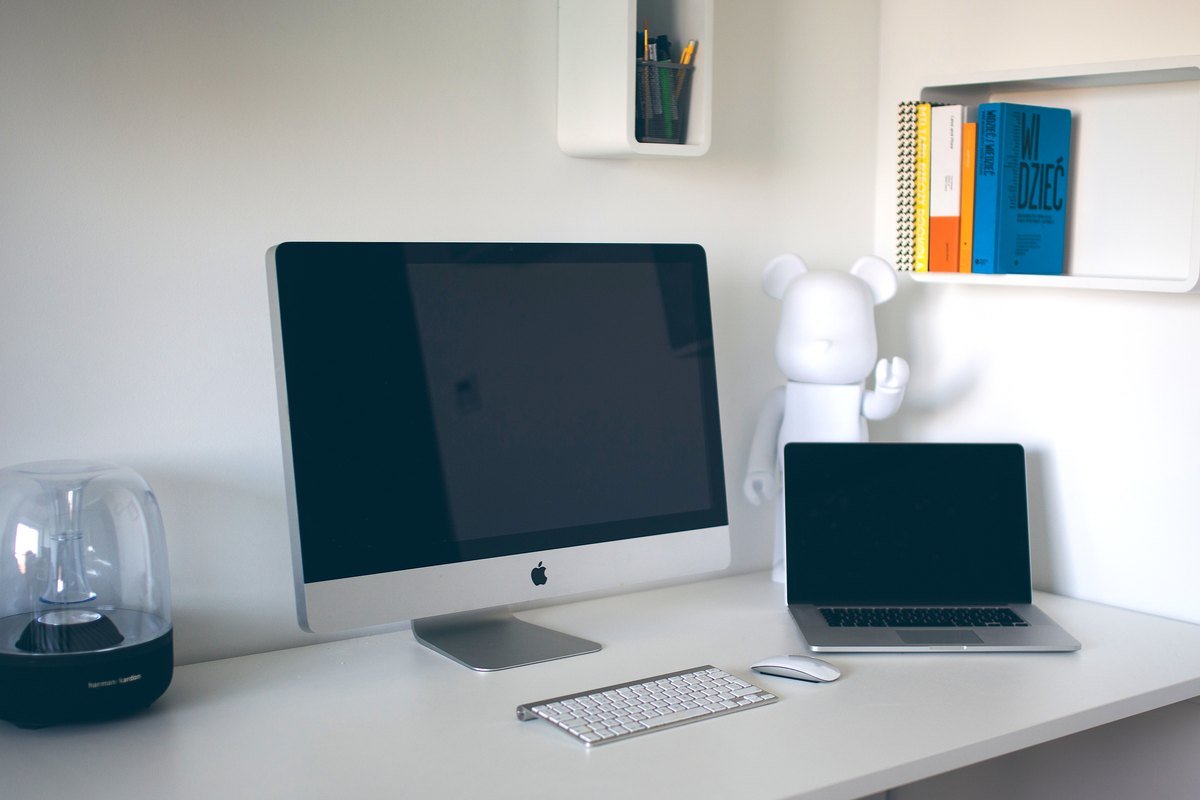
Follow a practical digital declutter checklist for files, photos, notifications, passwords, devices, and shared family technology without deleting what matters.
12 min read
What this guide covers: decluttering the digital stuff in a household: files, photos, inboxes, passwords, accounts, apps, and old devices. If what you really want to change is how often you reach for your phone or how screens affect your evenings, see our realistic digital detox guide, which focuses on screen habits rather than storage.
Why a practical system matters
Digital clutter is not only a storage problem. It creates repeated decisions, distracting alerts, missing documents, device conflict, and uncertainty about what is safely backed up. A careful declutter improves access and boundaries without reckless mass deletion.
A step-by-step approach
1. Protect important data before deleting
Confirm backups, recovery methods, account access, and ownership before removing files, apps, photos, or messages.
2. Start with notifications
Turn off alerts that do not require timely action and keep only those tied to people, safety, transport, work, or chosen priorities.
3. Create a simple file structure
Use a few broad folders, consistent filenames, and dates where useful rather than building a complex hierarchy.
4. Tidy shared devices and charging
Assign safe charging locations, label cables when necessary, and keep cords away from heat, water, walkways, and young children.
5. Review privacy and account access
Use unique passwords, multifactor authentication where available, and a secure method for household recovery information.
6. Retire what you no longer use
Close unused accounts, cancel forgotten subscriptions, and set aside old phones, tablets, and cables for safe data wiping and recycling.
A few optional picks
Multi Device Charging Station
SooPii 6-Port Charging Station
A divider-based station for households charging several phones and tablets together.

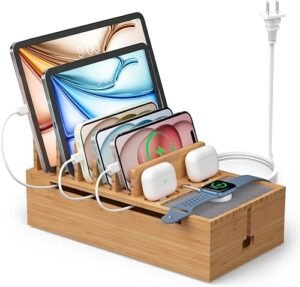
Pezin & Hulin Bamboo Charging Station
A furniture-style organizer for readers who want devices and small accessories in one visible place.
Reusable Cable Organizer
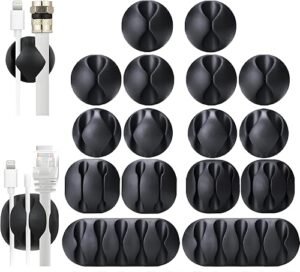
OHill Cable Clips
Small adhesive holders for frequently used charging cables on desks or bedside surfaces.
N NOROCME Cable Management Kit
A mixed kit for readers who need clips, ties, sleeves, and labels rather than one type of organizer.

What to try before buying anything
Most digital decluttering is free. Your phone’s built-in storage report shows which apps and files take the most space, and its focus or do-not-disturb settings cut notifications without new hardware. A shoebox for old cables and a single power strip in one spot can serve as a charging station for a few weeks. If the household still argues about chargers after that, a dedicated station is a reasonable next step.
Start with a backup you can trust
Before deleting anything, make sure important files and photos exist in at least two places, such as a cloud service and an external drive. Check that you can actually open the backup, not just that it exists. Write down where backups are stored and how to access them, and keep that information somewhere secure that another trusted adult in the household can find in an emergency.
Photos: the biggest digital pile
Photo libraries grow fastest and are the hardest to sort. Instead of trying to tidy years of photos at once, start with the current month. Delete obvious duplicates, blurry shots, and screenshots you no longer need, then favorite the best few. Do one past month each week. Most phones and photo apps have tools to find duplicates, which can save time.
Taming notifications
- Open your phone’s notification settings and go through apps one by one.
- Keep alerts for calls, messages from people, calendar reminders, and safety or transport apps.
- Turn off alerts for shopping, games, and most news and social media apps.
- Use scheduled summaries or do-not-disturb during meals and sleep.
Fewer interruptions often do more for calm than deleting files.
Email inbox reset
Unsubscribe from newsletters and promotions you no longer read; deal with five a day rather than all at once. Create a few broad folders, such as “Household,” “Health,” “Finances,” and “Kids,” and archive the rest. Set filters for regular senders such as school updates so they land in the right place automatically.
Passwords and accounts
Old accounts you no longer use can be a privacy risk. Make a list of accounts, close those you do not need, and update weak or reused passwords. A password manager can store unique passwords for each account. Turn on multifactor authentication for email, banking, and health portals. Keep recovery codes somewhere safe and offline.
Shared family devices
Tablets and laptops shared by the family collect apps and files from everyone. Give each person their own user profile where possible, review installed apps together, and remove those nobody uses. Agree on where devices charge overnight; keeping them out of bedrooms can help sleep. Our evening screen plan explains why.
Health information in your digital files
Medical records, test results, insurance cards, and vaccination records are worth keeping in one secure folder. Scan paper documents, name files with a date and a description, and limit access to people who need it. Our guide to organizing family medical records covers what to keep.
Keeping it tidy with a monthly check
Set a 20-minute monthly reminder to delete screenshots, clear downloads, check backups, and review notifications. A small routine keeps clutter from building back up and prevents the need for another big clear-out.
Tidying apps on your phone
Go through your home screen and delete apps you have not opened in three months. Group the rest into a few folders by purpose, such as “Health,” “Travel,” and “Money,” and keep only daily essentials on the first screen. Check app permissions while you are there, turning off location, microphone, or contact access for apps that do not need it.
Old devices and cables
Drawers of old phones, chargers, and cables add physical clutter too. Before getting rid of a device, back it up, sign out of all accounts, and reset it to factory settings. Recycle electronics through a retailer take-back program or local e-waste collection rather than putting them in household trash. Keep one labeled bag of cables you actually use.
Children and digital clutter
Involve children in tidying their own devices and apps. Review which apps they use, check privacy settings together, and agree on rules for downloads. Keeping devices in shared spaces rather than bedrooms makes supervision easier and supports better sleep.
Clutter versus screen habits
This checklist tidies what is stored on your devices and accounts. It will not, by itself, change how often you pick up your phone. After decluttering, notice whether you find documents faster and get fewer interruptions. If screens still feel like they are running your day, our digital detox guide walks through a seven-day experiment with device-free anchors and friction for automatic checking.
Key takeaways
- Back up and test before you delete anything.
- Cut notifications first; it is the fastest route to calm.
- Tidy photos and email a month or a few senders at a time.
- Secure accounts with unique passwords and multifactor authentication.
- Keep it tidy with a 20-minute monthly check.
Frequently asked questions
Should I delete all old photos?
No. Back them up, remove obvious duplicates or unusable images, and organize meaningful collections gradually.
How often should I declutter digitally?
A ten-minute monthly review and a deeper quarterly check are enough for many households.
Can a charging station reduce screen time?
It may support a shared boundary, but the device holder and household still need clear, realistic agreements.
When to seek expert help
Get technical help before deleting anything you cannot replace, such as family photos or health records, if you are unsure your backup works. If you think an account has been hacked, change the password from a trusted device and use the provider’s official recovery steps. If device use is affecting sleep, school, work, or relationships and you cannot cut back on your own, a doctor or mental health professional can help—see our guide to a realistic digital detox.
This guide is general information, not personal medical advice. In an emergency, call 911 or your local emergency number.
Related reads
Sources
- NIH News in Health — Whole Person Health
- NIH — Your Healthiest Self Wellness Toolkits
- NIMH — Caring for Your Mental Health
- NIDDK — Health Tips for Adults
Affiliate disclosure. This article contains Amazon affiliate links. If you buy through a qualifying link, Full Healthy Lives may earn a commission at no extra cost to you. Product mentions are optional, not medical advice.